Installing Collector
You must create a Home & a Collector in the Cloud Platform before on-boarding a Collector Unit. You will need the Engineer Code from the Home & the Device Authentication Code from the Collector in Cloud before On-Boarding.
The security module attached to the Single Board Computer will flash (Blue Led) once every 3 seconds in normal operation. If the security module is continually flashing then the collector has not booted correctly or is still booting. Allow 1-2 mins for the collector to boot.
Tip: If using Ethernet, connect this before applying the network settings, then you can test the ethernet connection immediately when applied. Choosing ethernet means you can stay connected to the OnsiteConfig network to keep a check on progress as this uses Wi-Fi.
Tip: Onboard the Collector using your own high speed network, this way any issues with the customers network or internet will not hamper the installation of pulling the data and the app dependencies. Its also good practice to ensure and test no issues are evident before installing on the customers network.
Power on Collector using the official power supply supplied, leave to boot for 1-2 mins
Connect your laptop or similar device to the Collectors Wi-Fi network broadcasted as OnsiteConfig, enter the password, Password123

Open a Web Browser on your laptop or similar device & browse to the IP address http://192.168.150.1
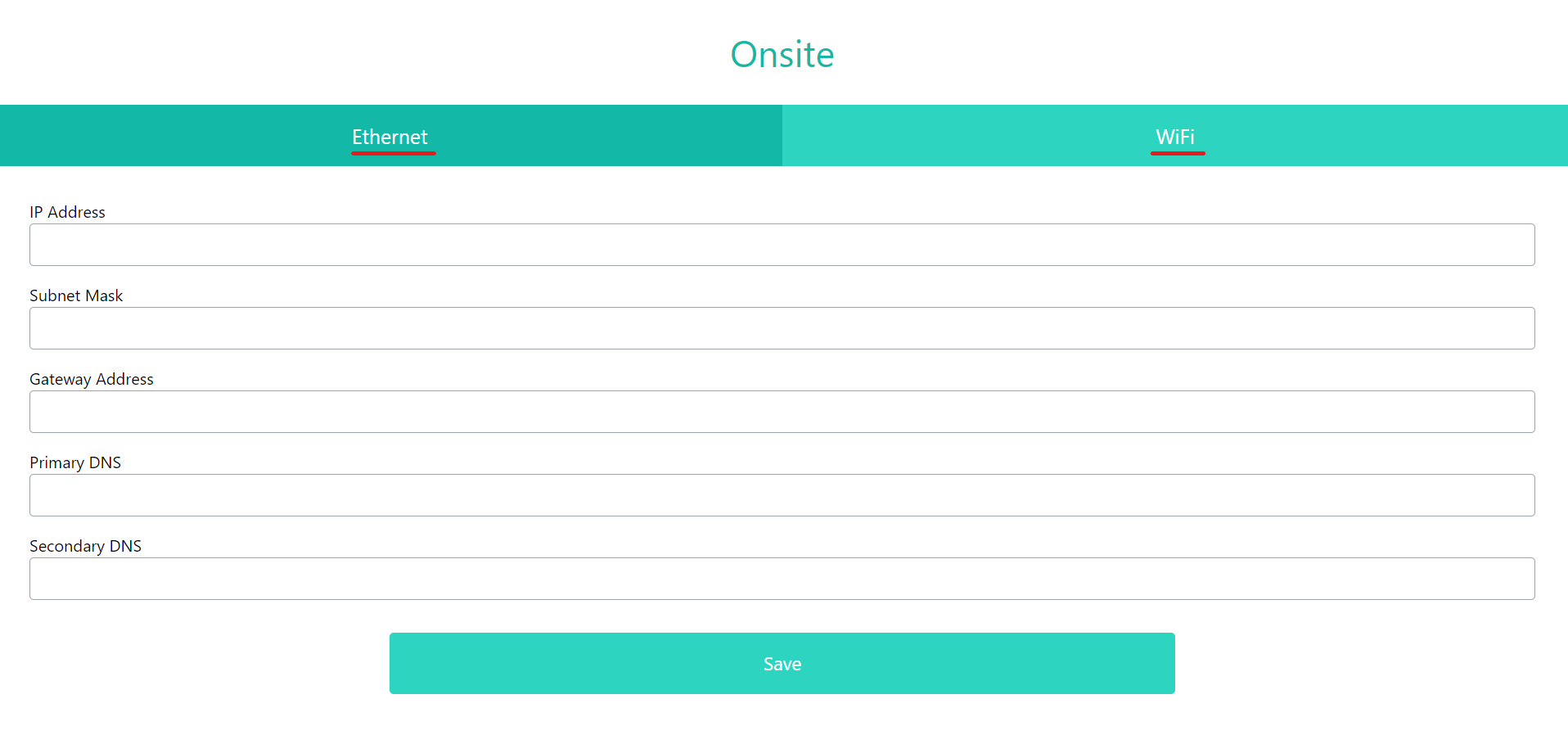
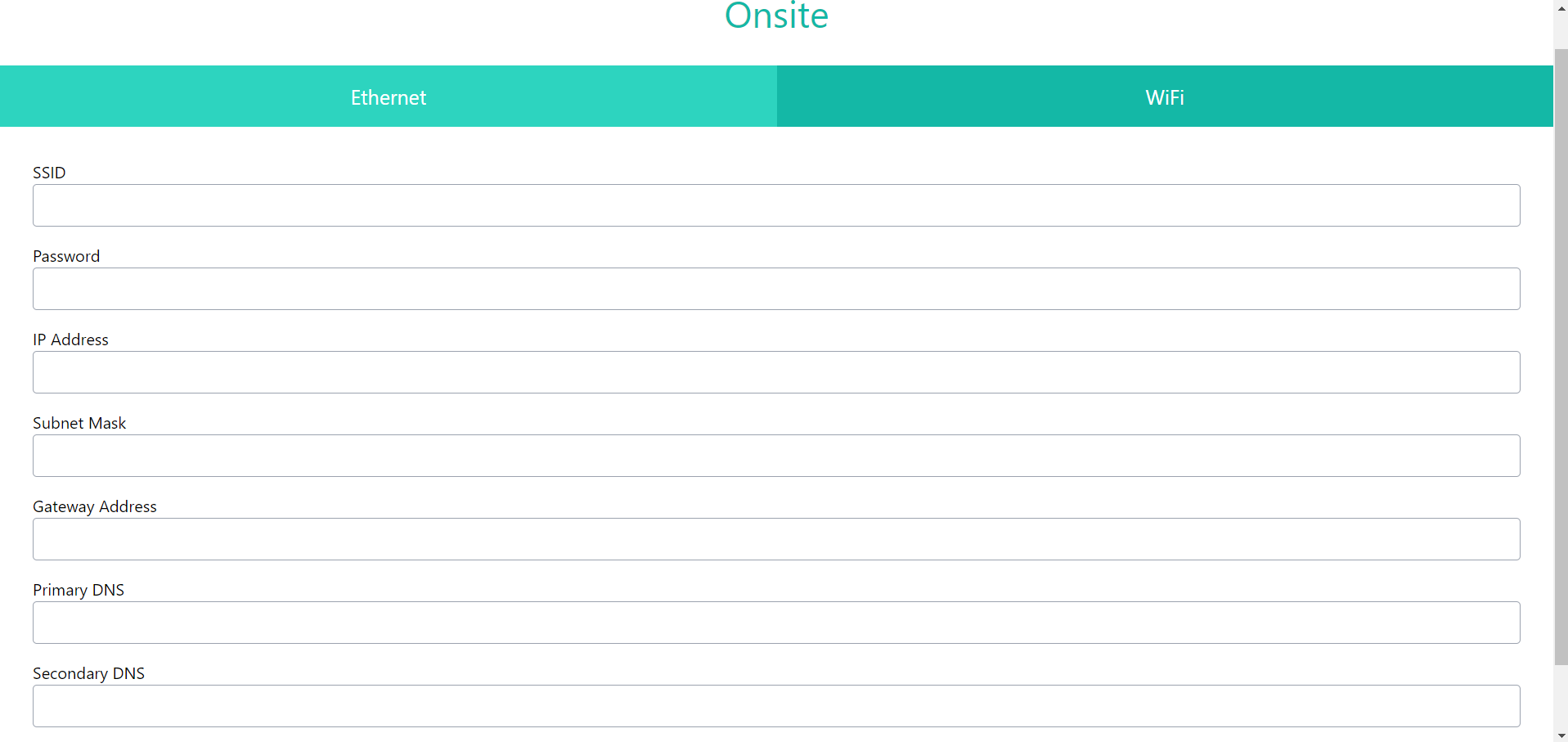
Choose between Ethernet or Wi-Fi
Ethernet - Insert the IP Address, Subnet Mask, Gateway, Primary & Secondary DNS & press Save.
Wi-Fi - Insert the SSID, Password, IP Address, Subnet Mask, Gateway, Primary & Secondary DNS & press Save.
Allow for the network settings to apply for 1 min and then refresh the page.
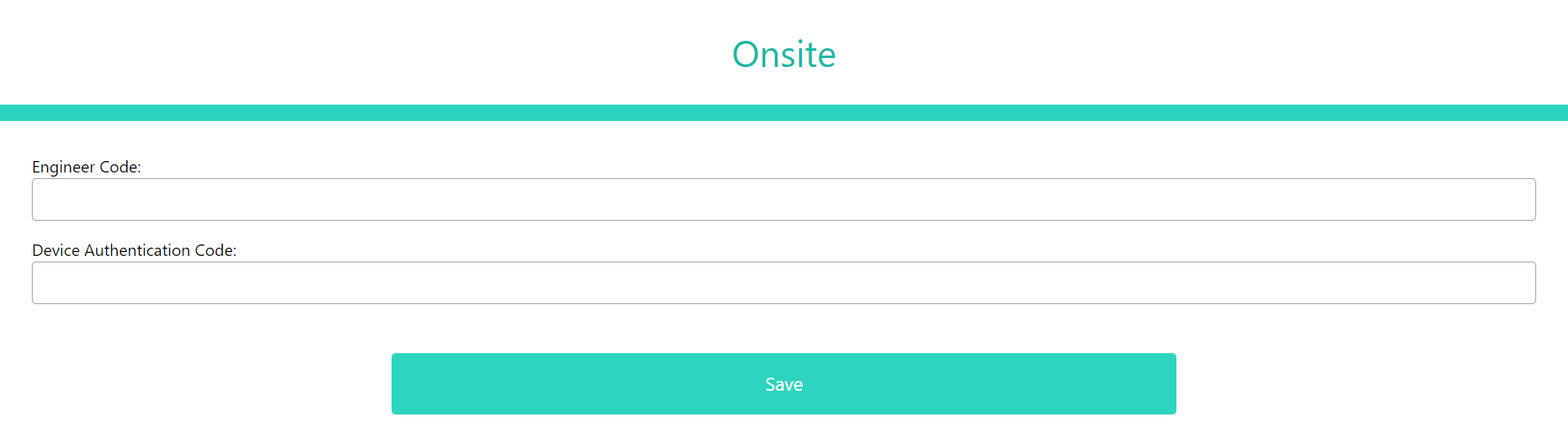
Enter the Engineer & Device Authentication Codes to bind the collector to the specific Home created in the Cloud Platform & press Save.
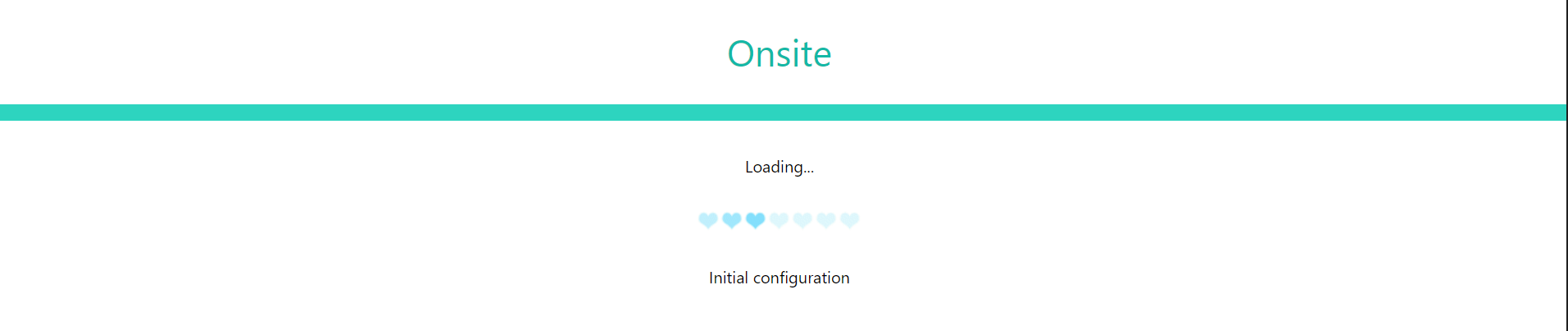
The Collector will communicate with cloud site and start pulling dependencies, configurations & updates. On a good internet connection this will take on average 10-12 mins to complete.
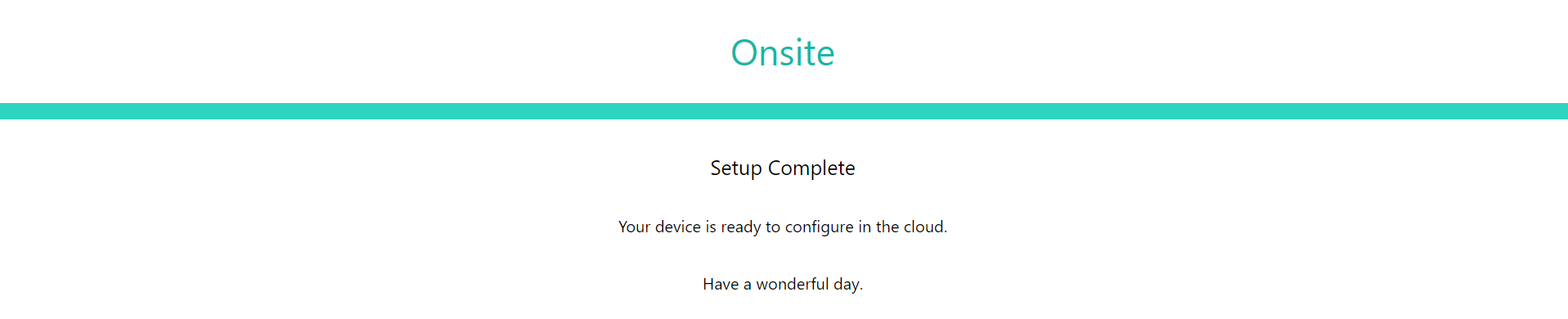
Once complete you will receive the below success message! Your collector can now start to receive Nursecall alerts and mobile app users will be able to connect!