Rooms Management
Let’s explore the features of room management in more detail:
-
Edit Callpoint or Room Name:
- With room management, you can easily edit the callpoint (a unique identifier for a specific location) or the room name.
- Editing a Room Name will change the name display to the mobile app.
-
Grouping Rooms for Simplified Reporting:
- Room management lets you group rooms together based on common criteria.
- By doing so, you simplify reporting and analysis. For example, you might group all patient rooms on a specific floor or within a particular department.
-
Creating Callpoints and Match Strings:
- When you manually add a room, you can simultaneously create a callpoint (a reference point for communication or alerts) and a match string.
- When you manually add a room, you can simultaneously create a callpoint (a reference point for communication or alerts) and a match string.
Group Callpoints to a Room
-
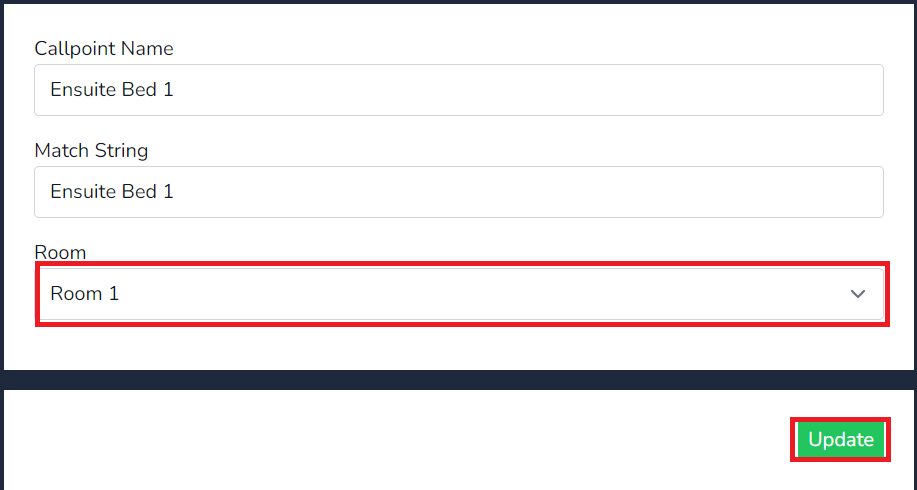
When configuring your callpoints, you can group them with specific rooms for streamlined reporting. Let’s walk through an example:
- Imagine you have an Ensuite Bed 1 callpoint.
- Select Manage against Ensuite Room 1
- Select Manage under the
secondaryroom(Example Ensuite)filed Click on Mange

Select fromIn the dropdown themenu, roomselect theRoom 1 to associate this callpoint will be grouped with .Inthat thisroom.
example