Rooms
A Room serves as a designated space where Callpoints can be located individually or grouped together. Its primary function is to collect alerts and organize them, ensuring accurate reporting to care management software. By centralizing these alerts, the Room ensures that they are appropriately filed and associated with the correct resident.Let’s explore the three ways to create Rooms:
-
Automatic Creation: Rooms can be generated automatically, perhaps through a system process or predefined rules. This method ensures consistency and efficiency.
-
Manual Creation: If specific customization is needed, Rooms can be manually created. Caregivers or administrators can set up Rooms individually, tailoring them to unique requirements.
-
CSV Upload: For bulk creation or migration, Rooms can be imported via a CSV (Comma-Separated Values) file. This approach simplifies large-scale setup and ensures data accuracy.
Choose the method that best suits your needs, and let the Rooms facilitate efficient alert management!
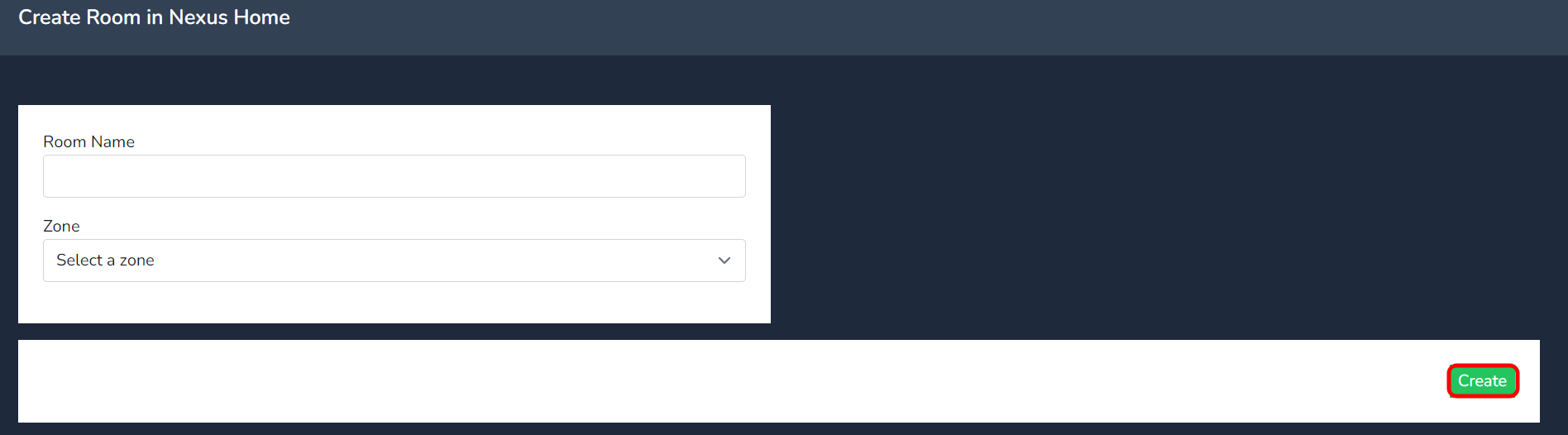
To manually create a room, follow these steps:
- Click the Create button.
- Add the room name and select the zone from the dropdown menu.
- Click on Create to finalize the room creation.

For CSV uploads, you can download the template CSV file by clicking on the link highlighted below. When uploading via CSV, ensure that the Match String aligns with the data in the Nursecall system, including any white spaces.
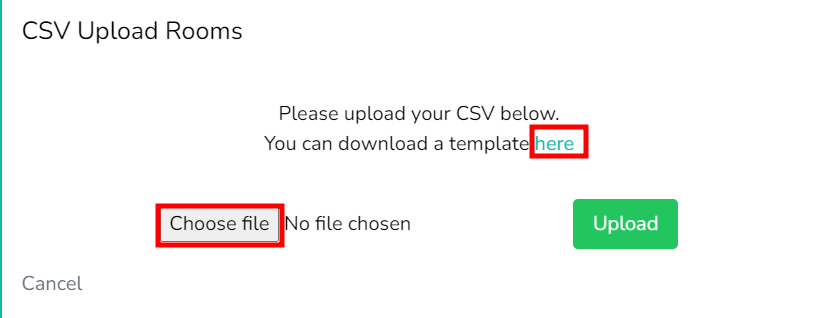
The CSV should include the following information:
- Match String: Must match the data in the Nursecall system.
- Call Point: Name of the Callpoint device.
- Zone: The Zone the Room will reisde in.
- Room: The room to which the Callpoint is assigned.
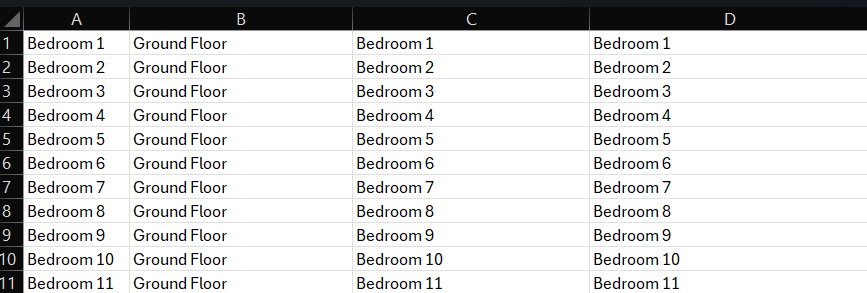
Default Template downloaded
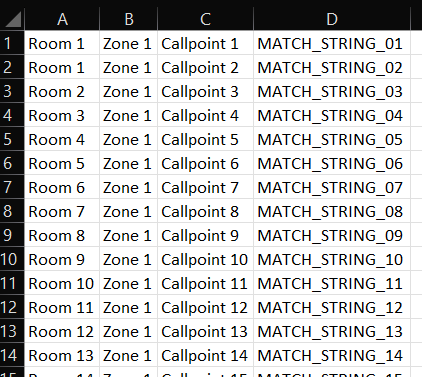
Example Template to be uploaded
What is important as a minimum is the MATCH STRING must be the same as the device names from the nursecall system.